
Product Setup & Guides
Discover our product setup and compatibility guides.

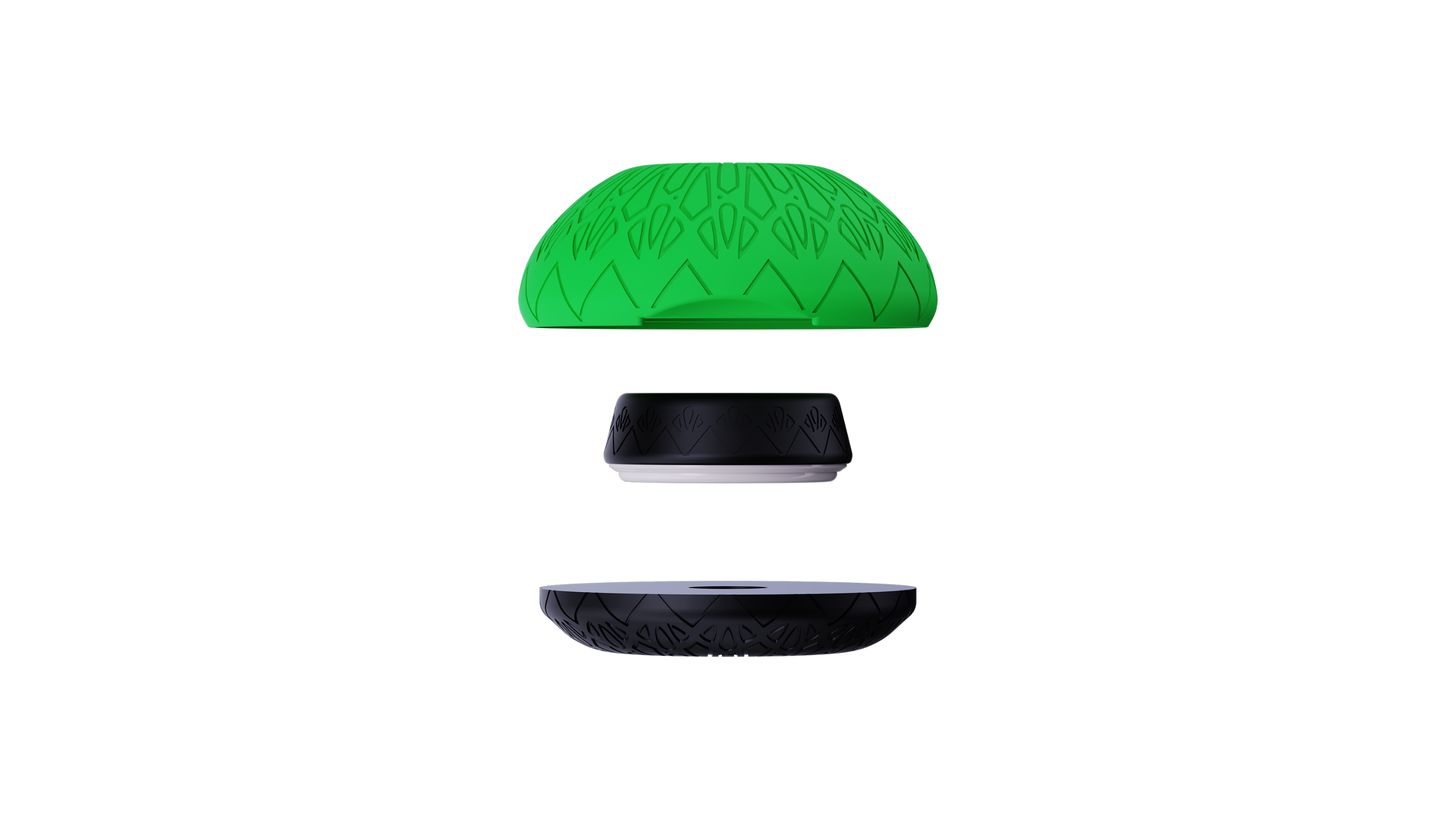
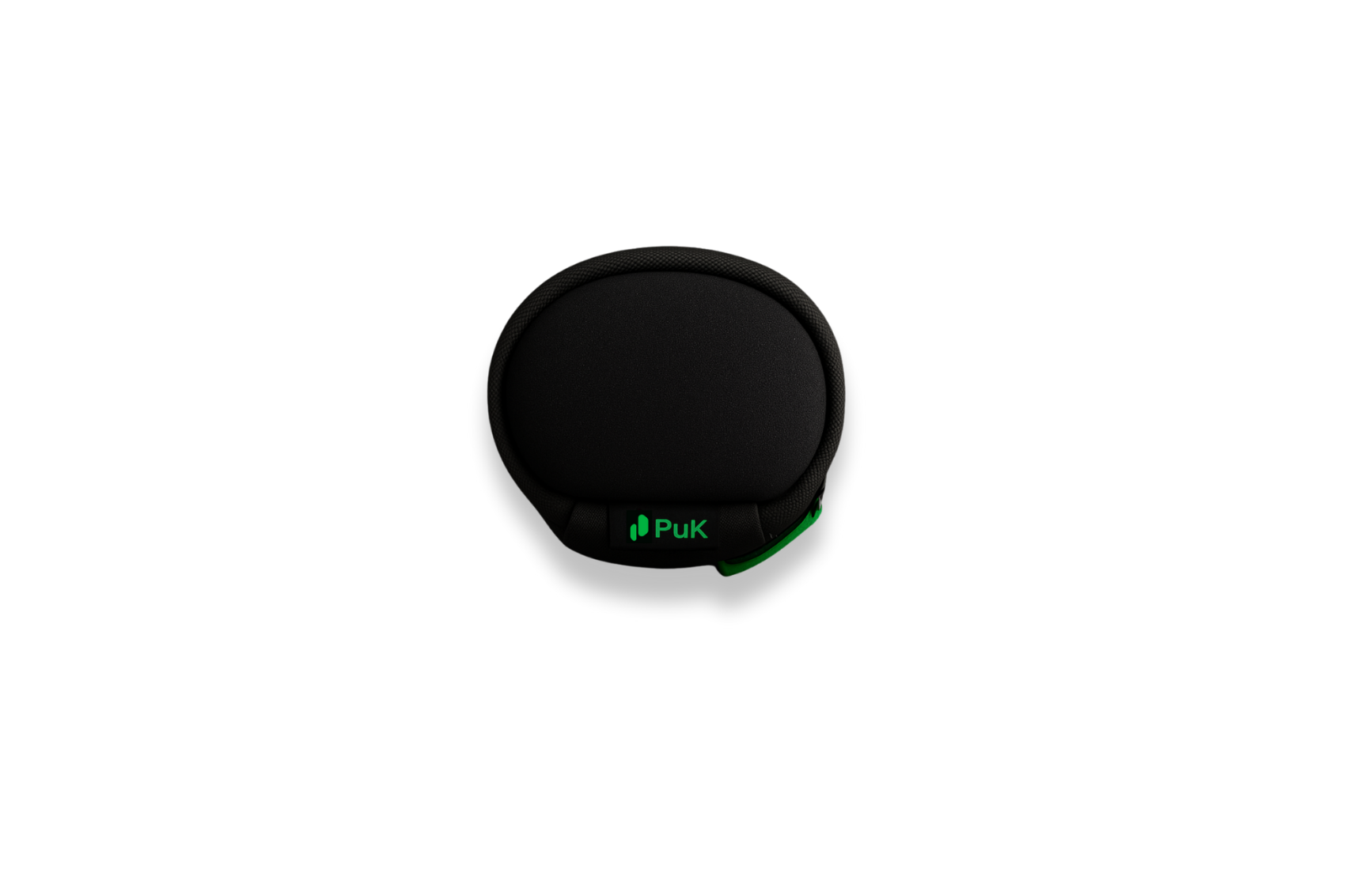
PuK Thumbstick
Not sure if it works with your device? Check our compatibility guide before you buy. Already have yours? Head to product setup to get the most out of your PuK Thumbstick.
PuK Thumbstick FAQs
How do I care for my PuK Thumbstick?
Your PuK Thumbstick is easy to maintain.
- Clean with warm water when necessary. Never use Alcohol. Alcohol can degrade the Stylus in your Thumbstick.
- Keep your device screen clean. If you spend time in a dirty environment you should clean your phone screen before a gaming session. If small grains of dirt get under your PuK Thumbstick this could cause your screen to be scratched.
My PuK Thumbstick or Thumbstick Anchor Magnet are sliding out of position.
Due to the magnetic functionality of the The Puk Thumbstick, the 360 degree movement can be affected by interference from metal internal mobile device components. When this happens, experiment with moving your PuK Anchor to a different position, away from where the interference seems to be coming from. Most of the time, flipping your phone orientation 180 degrees and holding in the opposite orientation will allow you to place the thumbstick where you like.
If you are experiencing ‘Anchor drift’ during play, take the included ‘Sticky Disk’ and place it on the back of your device as a home for your Anchor. The Smooth back of the ‘Sticky Disk’ creates a great surface for your Anchor to bind to. Run out of Sticky Disks? The smooth backing of a piece of ‘sellotape’ (or equivalent) works just as well.
My PuK Thumbstick isn’t detected by my device screen.
The first thing you should try when your PuK thumbstick or Triggers appear to be working incorrectly is to put your phone through a sleep cycle. This recalibrates the sensitivity of the display. This is a process that some users might have to do before each session.
Sleep Cycle Quick Screen Calibration
- Load your game of choice
- Attach all touch-interface devices (Triggers and PuK Thumbstick)
- Press the power button to put the display to sleep (it’s ok if you need to shift a trigger sideways to get access to the device power button)
- Wait 5 seconds
- Press the power button again to wake the phone and unlock if necessary
Adjust your device and in-game Accidental Touch protection settings
It’s common for device and in-game ‘Accidental touch protection’ settings to reject inputs from our Triggers and Thumbstick. We recommend turning these settings OFF both in-game and within your device settings if issues persist after performing a screen calibration.
If this hasn’t resolved your issue review our comprehensive Touch Interface Troubleshooting Guide, or contact [email protected].
Does using the PuK Thumbstick void my device's warranty?
Your Warranty is safe as long as you follow our Thumbstick Compatibility guidelines:
PuK Thumbstick Compatibility Guide
The Puk Thumbstick is compatible with all slate form factor mobile devices with a hard glass display. This includes most phones and tablets but folding phones with soft displays are not compatible. These soft displays do not allow for ideal smooth motion of the Thumbstick and we cannot guarantee that soft displays will not be damaged after extended use.
The magnets used in PuK products are not strong enough to cause permanent damage to your mobile device, but they might cause temporary disruption to some functions such as GPS, but only while attached to your device.
The PuK Thumbstick doesn't require any permanent modifications to your device.
The PuK Thumbstick: Display Care and Screen Protectors
The PuK Thumbstick interfaces with your device screen on a specially selected self-lubricating Nylon disk and a traditional touch display stylus. Our extensive testing shows that the long term effect of this on your display is very minimal. In fact, our testing shows that long term, a mobile gaming thumb sleeve is more abrasive than our Thumbstick.
For peace of mind, you might choose to use a screen protector on your device. This should work great as long as your screen protector made from Tempered Glass. Although, if you’re using a PuK Thumbstick with PuK Compatible Triggers you may find multi-touch issues on some devices. So far, only Apple devices have shown this issue in our testing.
My PuK Thumbstick is causing in-game movement even when I’m not touching it (Drift).
The first thing you should try when your PuK thumbstick or Triggers appear to be working incorrectly is to put your phone through a sleep cycle. This recalibrates the sensitivity of the display. This is a process that some users might have to do before each session.
Sleep Cycle Quick Screen Calibration
- Load your game of choice
- Attach all touch-interface devices (Triggers and PuK Thumbstick)
- Press the power button to put the display to sleep (it’s ok if you need to shift a trigger sideways to get access to the device power button)
- Wait 5 seconds
- Press the power button again to wake the phone and unlock if necessary
Adjust your device and in-game Accidental Touch protection settings
It’s common for device and in-game ‘Accidental touch protection’ settings to reject inputs from our Triggers and Thumbstick. We recommend turning these settings OFF both in-game and within your device settings if issues persist after performing a screen calibration.
If this hasn’t resolved your issue review our comprehensive Touch Interface Troubleshooting Guide, or contact [email protected].
PuK Thumbstick: Stylus Replacement Guide
Follow these steps to perform a Stylus Replacement:
- Take a set of tweezers or just your fingernails, and pinch the sides of the of the Stylus.
- Pull gently until the stylus comes free. Don't squeeze too hard if you're using pliers or something with lots of leverage.
- Take the replacement Stylus included with your PuK Thumbstick.
- Place the replacement Stylus, metal part first, into the central slot. It should just snap into place.
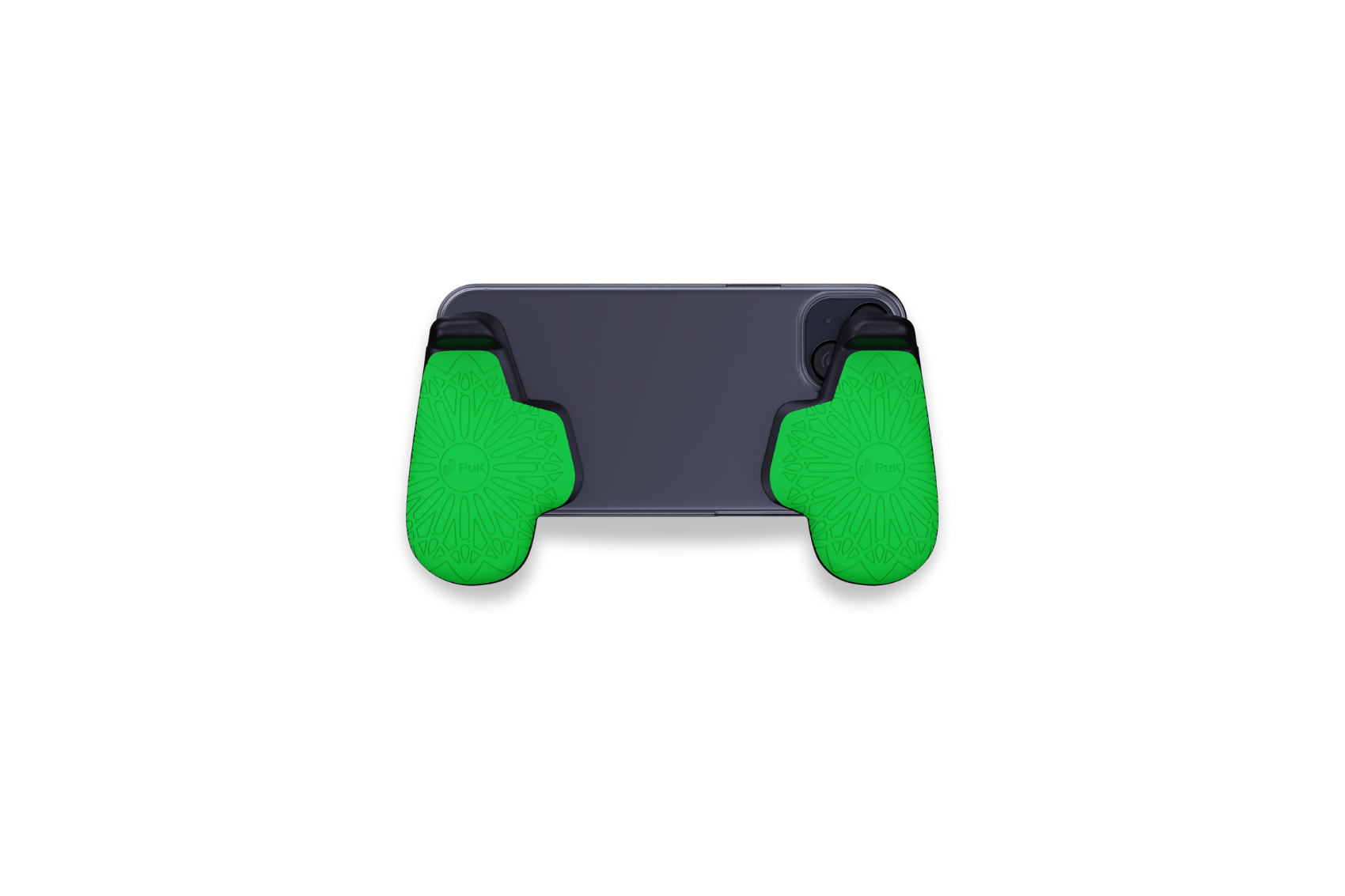
PuK Grips
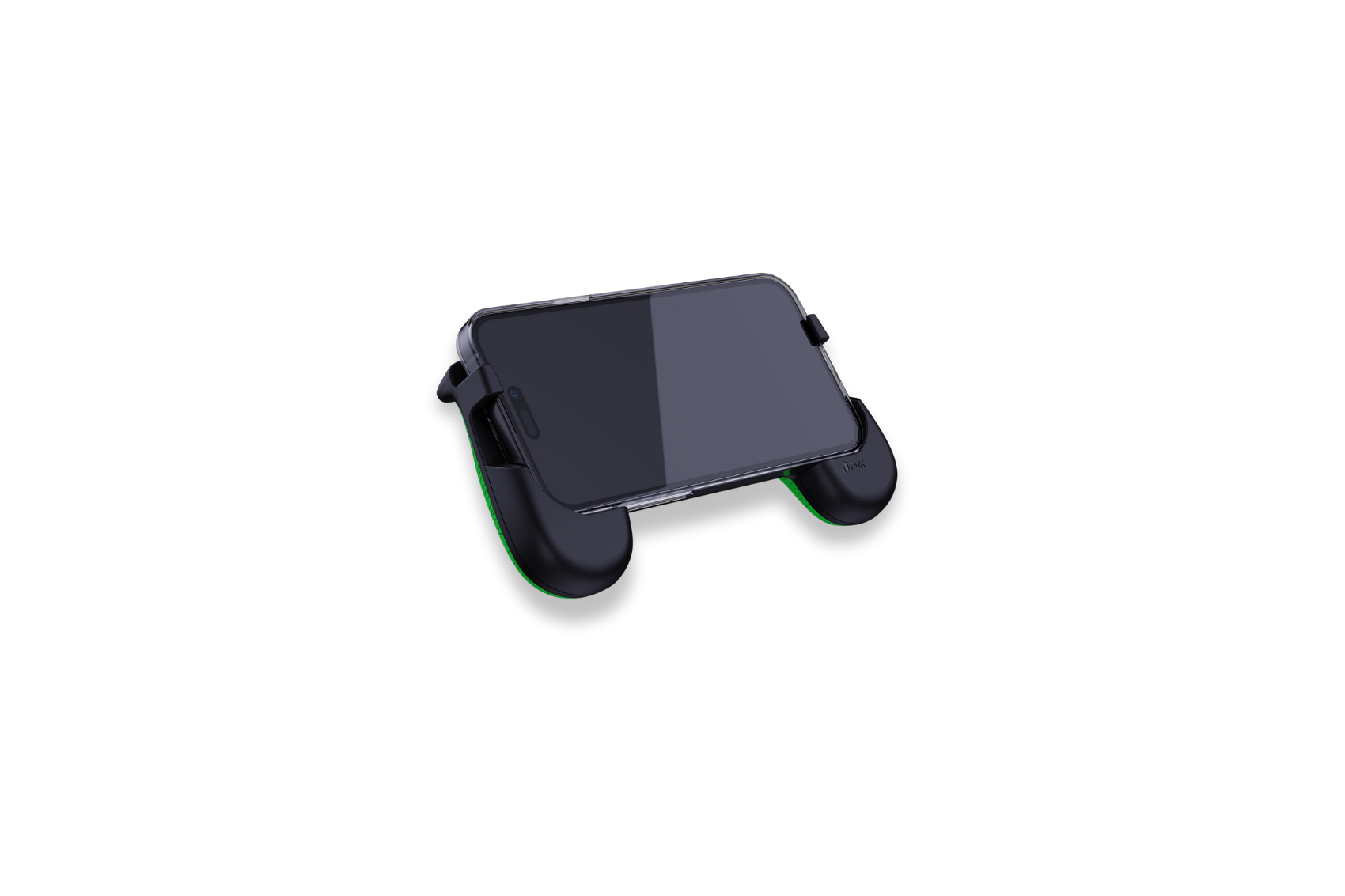
Not sure if it fits your phone? Check our compatibility guide before you buy. Already have yours? Head to product setup and start playing with better grip in minutes.
PuK Grips FAQs
How do I care for my PuK Grips?
Your PuK Grips are easy to maintain.
- Clean with water or cleaning alcohol (try not to let your adhesive pads come into contact with water or alcohol, the sticky pads might lose adhesion)
- Keep your grips out of strong direct sunlight. The adhesive pads might lose their grip to your device.
My PuK Grips won’t stick to my device or case.
If your PuK Grips won’t securely attach to your Phone Case, please review our Grip Compatibility guide and Installation Guides to see if this helps you to identify the cause of your issue.
The PuK Grips Compatibility Guide
As devices vary in form and finish so widely, sometimes we have to get creative. Get in touch with our Customer Support team. If you can share some pictures and details, we should be able to help you.
Can I remove and re-attach The PuK Grips?
The PuK Grips attach permanently, so we recommend that you attach the grips to a phone case so that you can easily remove your phone from the case and grips whenever you want to.
However if you have a new phone and you want to reinstall your grips it should be possible. With some care you should be able to pull your grips away from your mobile device, or case, which they were attached to. You should not be left with much residue from the old adhesive pads. Please peel slowly and carefully to ensure that you’re not putting too much force on your device.
You will probably have some spare adhesive pads to use for re-attachment within your PuK Grips Packaging.
If you don’t have any replacement adhesive pads, please contact us and we’ll see what we can do to provide you with some spares directly.
Can I still access all my phone's buttons and ports with PuK Grips attached?
PuK Grips are designed to allow full access to your device USB port but may cover your device power, AUX and volume buttons depending on the placement. We recommend orienting your phone as shown in our grips installation Guide, attaching it with a case so that no buttons are permanently obstructed.
Do the PuK Grips interfere with wireless charging?
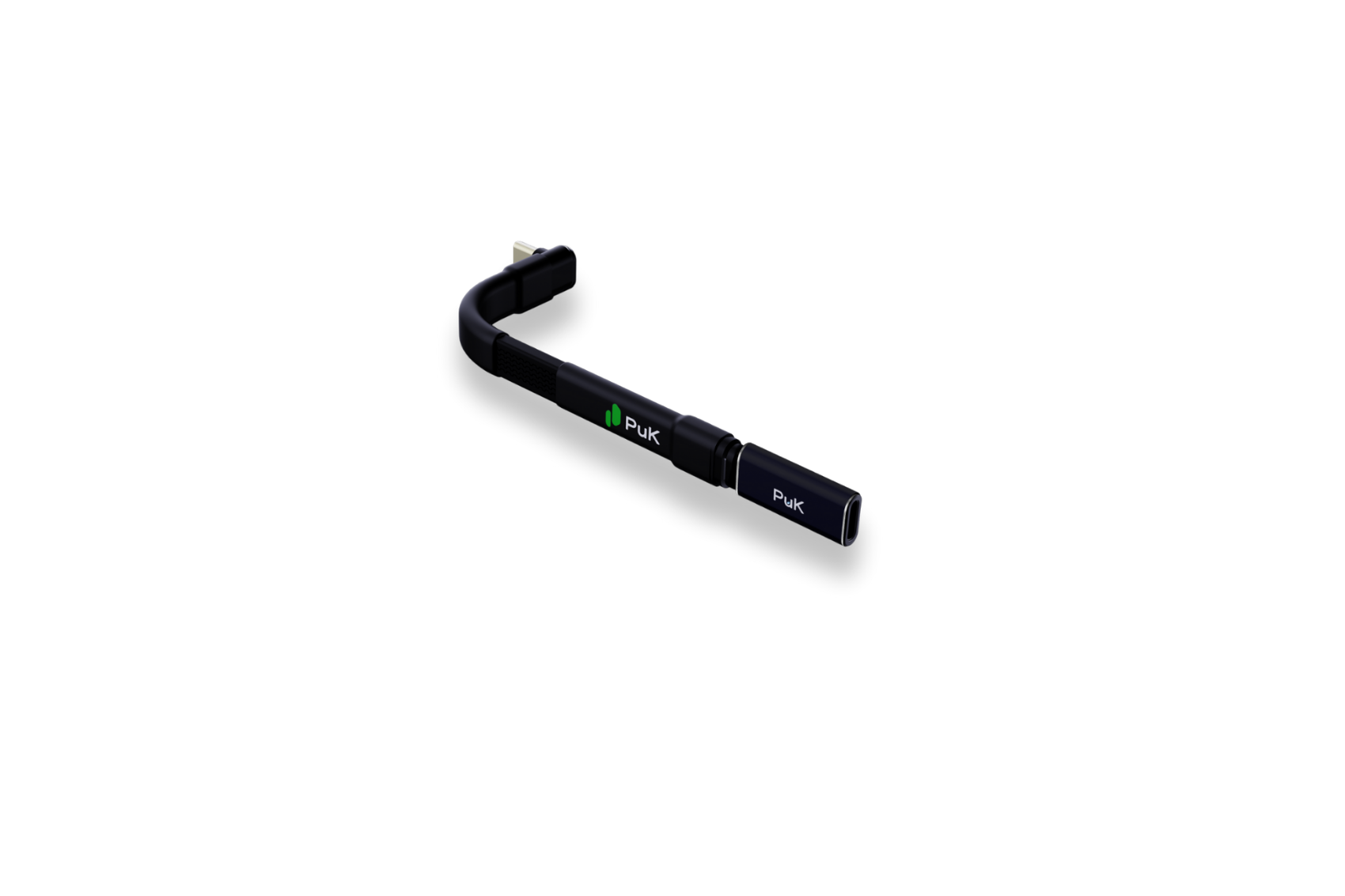
PuK Grips are designed to allow access for wireless charging and cooling while attached to your phone. For some styles of wireless charger, you might need to remove your phone from it's case with attached grips for access. This will of course depend on the wireless charging solution you currently use. We do recommend using our wired LinkCable to connect power solutions while gaming.
Note. Charging, especially wireless, can cause device overheating. For the best outcomes, we recommend gaming with a cooler while charging through our LinkCable for optimal game performance.
Are The PuK Grips compatible with tablet devices?
While we haven’t conducted thorough testing with Grips on tablet devices yet, in theory they should attach well. Please note that the experience might not be ideal as the PuK Grips have been ergonomically designed with the weight distribution of a mobile phone in mind, not a tablet, so comfort results may vary.

PuK Triggers
Already have your triggers? Head to the setup guide and get your controls configured in minutes.
PuK Triggers FAQs
My PuK Triggers are not working properly.
The first thing you should try when your PuK thumbstick or Triggers appear to be working incorrectly is to put your phone through a sleep cycle. This recalibrates the sensitivity of the display. This is a process that some users might have to do before each session.
Sleep Cycle Quick Screen Calibration
- Load your game of choice
- Attach all touch-interface devices (Triggers and PuK Thumbstick)
- Press the power button to put the display to sleep (it’s ok if you need to shift a trigger sideways to get access to the device power button)
- Wait 5 seconds
- Press the power button again to wake the phone and unlock if necessary
Adjust your device and in-game Accidental Touch protection settings
It’s common for device and in-game ‘Accidental touch protection’ settings to reject inputs from our Triggers and Thumbstick. We recommend turning these settings OFF both in-game and within your device settings if issues persist after performing a screen calibration.
If this hasn’t resolved your issue review our comprehensive Touch Interface Troubleshooting Guide, or contact [email protected].

Game Guides
PuK products are designed to work across the games you play every day. Whether you're dropping into Fortnite, grinding ranked in Call of Duty Mobile, or competing in PUBG Mobile, PuK thumbsticks, triggers, and grips are built to give you an edge across the biggest titles in mobile gaming. Check our full game compatibility guide to see how PuK works with your favourite game.
Featured products